
Introduction
Setting a Temporary Password for a User
In this topic, you will learn how to set a temporary password for a user.
We estimate that this will take 1 minute to complete.
Introduction
In some cases, a user may be unable to reset their password on their own. As a Team Admin/Leader, you can set a temporary password for a user that is part of one of your designated teams. Once you provide the user with the temporary password, it will ask them to change it upon their initial login. This is done for security purposes, and they are required to change it to a new permanent password. This feature can be used for users who have and have not logged into Skywise Academy.
HINT
Passwords must contain 8-128 characters, a lowercase letter, an uppercase letter, a number, and a special character.
Detailed Explanation
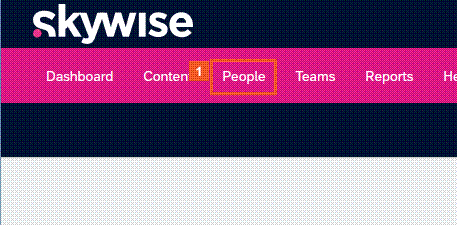
 Click the People tab.
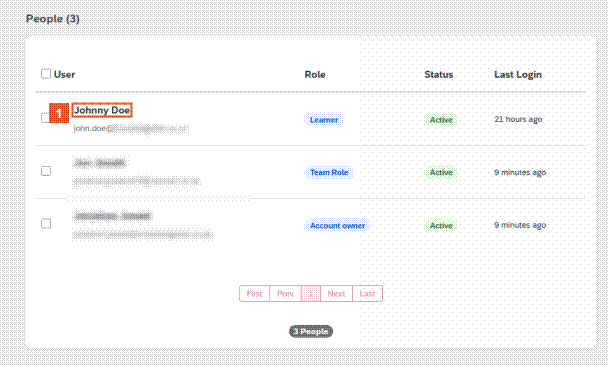
Locate the person whose password needs a reset.
HINT
The quick serch feature can be useful if you have access to a lot of users in the teams you administer.
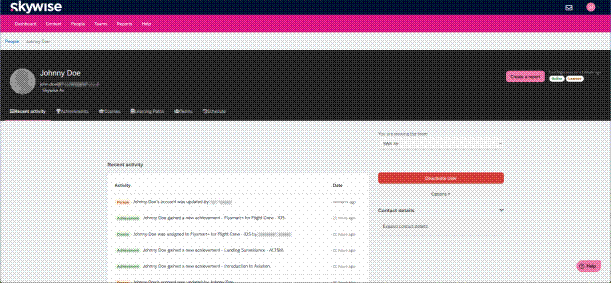
 Click the Johnny Doe list item.
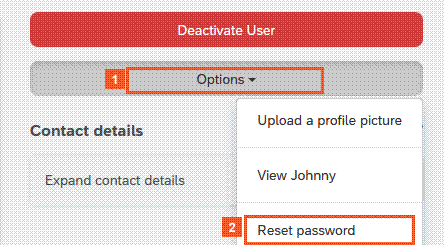
 Click the Options dropdown button.
 Click the Reset password menu item.
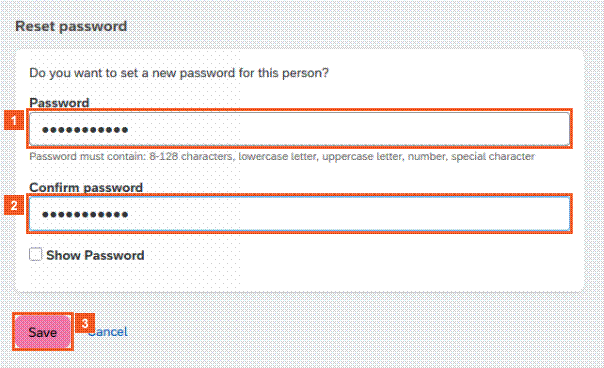
 Click the Password input field.
We entered a password for you.
 Click the Confirm password input field.
We confirmed the password for you.
 Click the Save button.
SUCCESS
Congratulations! You have successfully reset the password for a user.
HINT
The user will need to change their password the next time they log in.