
Introduction
Adding New Users to Skywise Academy
In this topic, we will demonstrate how to add a new user into Skywise Academy as a Team Leader/Admin.
We estimate that this will take 3 minutes to complete.
New User Information
As a Team Leader/Admin, you can add new users of Skywise Academy into the team(s) that you have access to. You may be in multiple teams, so it's important to make sure you add new users into the correct team.
When adding new users, the following information is required as a minimum:
- First name (given name)
- Last name (family name)
- Email address.
Detailed Explanation
REMINDER
You must be on the Admin View to add a new user to Skywise Academy. To do so, click the profile button in the top-right corner and click the switch to admin view list item.
ATTENTION
It is very important that you make sure you are adding new Skywise Academy users to the correct team, especially when you have access to more than one team.
We are currently administrating the Skywise Academy Air, N-Flight Planning (N-FP) team.
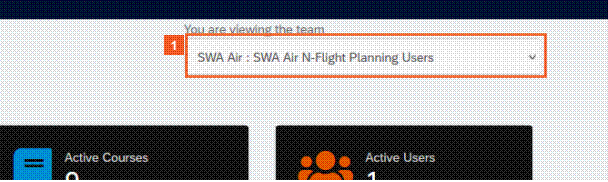
 Click the Team dropdown button.
You can see in this example, that there are two possible teams that can be worked on. Let's switch into the other team called SWA Air: SWA Air Flysmart Users.
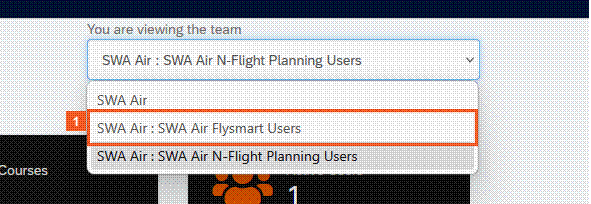
 Click the SWA Air : SWA Air Flysmart Users list item.
HINT
Teams can have sub-teams.In the dropdown list a colon (:) is used as a delimiter to show the team hierarchy. In this specific example,the top level team is called SWA Air. This is subsequently broken down into two further teams, one for Flysmart users and the other for N-Flight Planning users.
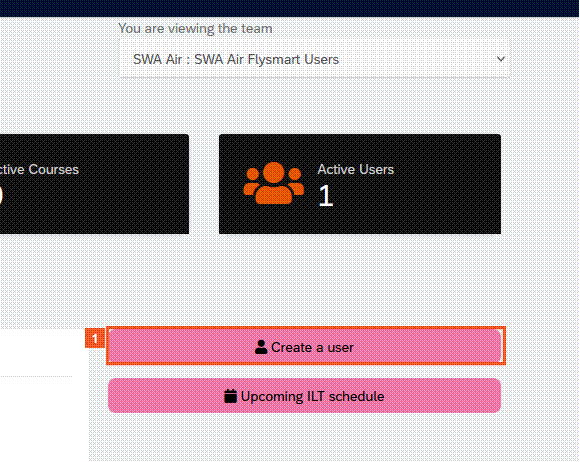
 Click the Create a user button.
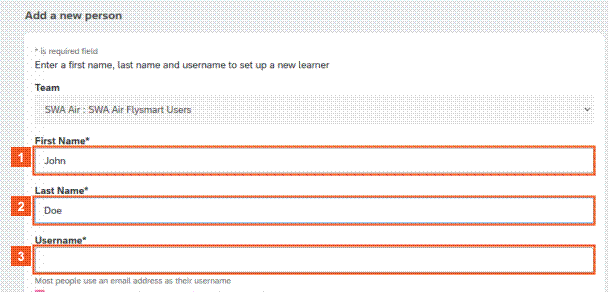
 Click the First Name input field.
We have entered the First Name for you.
 Click the Last Name input field.
We entered the Last Name for you.
 Click the Username input field.
ATTENTION
Skywise Academy standard operating procedure requires the Username to be the same as the email address of the user.
Notice that there is a checkbox turned on to "Send an email to this person with a link to login". Without this being checked on, the new user would not get a link to Skywise Academy and be able to set their password.

We entered the Username for you.
We need to scroll down.
 Click the Page Down vertical scroll bar.
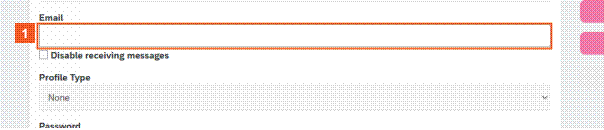
 Click the Email input field.
We entered the Email address for you.

 Click the Add person button.
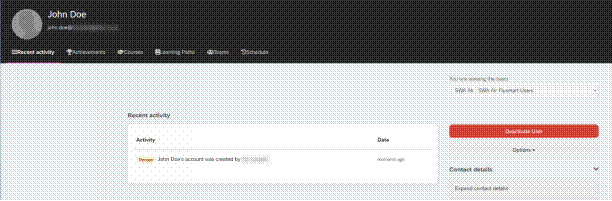
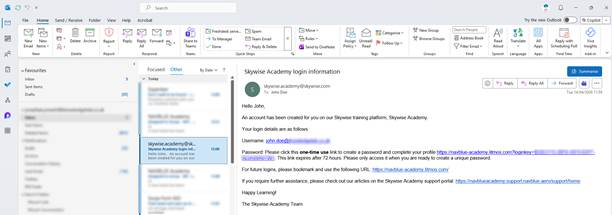
Example Email
HINT
The login email comes from skywise.academy@skywise.com. If this email does not arrive, please ensure that the domain skywise.com is added to your user's list of safe senders and whitelisted.